How to Add Text to a Video (iPhone, TikTok, YouTube and Online)
How you add text to a video depends on where you're editing: TikTok has a text tool built in, iMovie does it on iPhone, and online editors like goodgoodclips.com add text, captions and titles in your browser. Here's how to do each, with screenshots.
How to add text to a video online
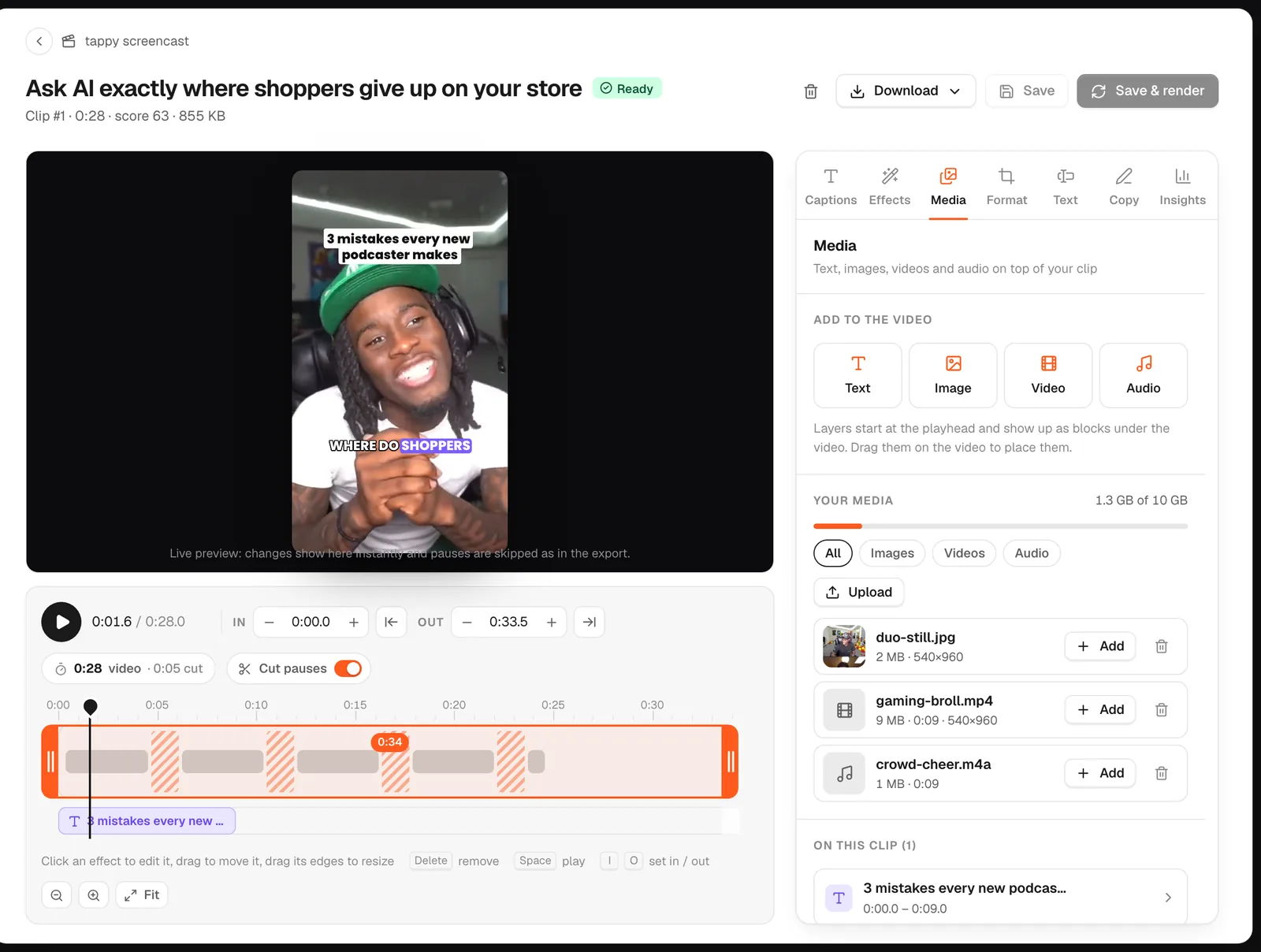
In goodgoodclips.com, open a clip and go to the Media tab:
- Move the playhead to where the text should appear and click Text.
- Type your text, then drag it on the video to place it. Drag a corner to resize it, or a side to re-wrap it.
- Pick a style (light, dark or outline), the size, and how long it stays on screen. It shows up as a block on the timeline that you can drag.
- Click Save & render to export the clip with the text burned in.
goodgoodclips is a paid tool for turning long videos into clips, so it adds captions automatically too. If you just need text on one short video, the free options below work well.
How to add text to a TikTok video
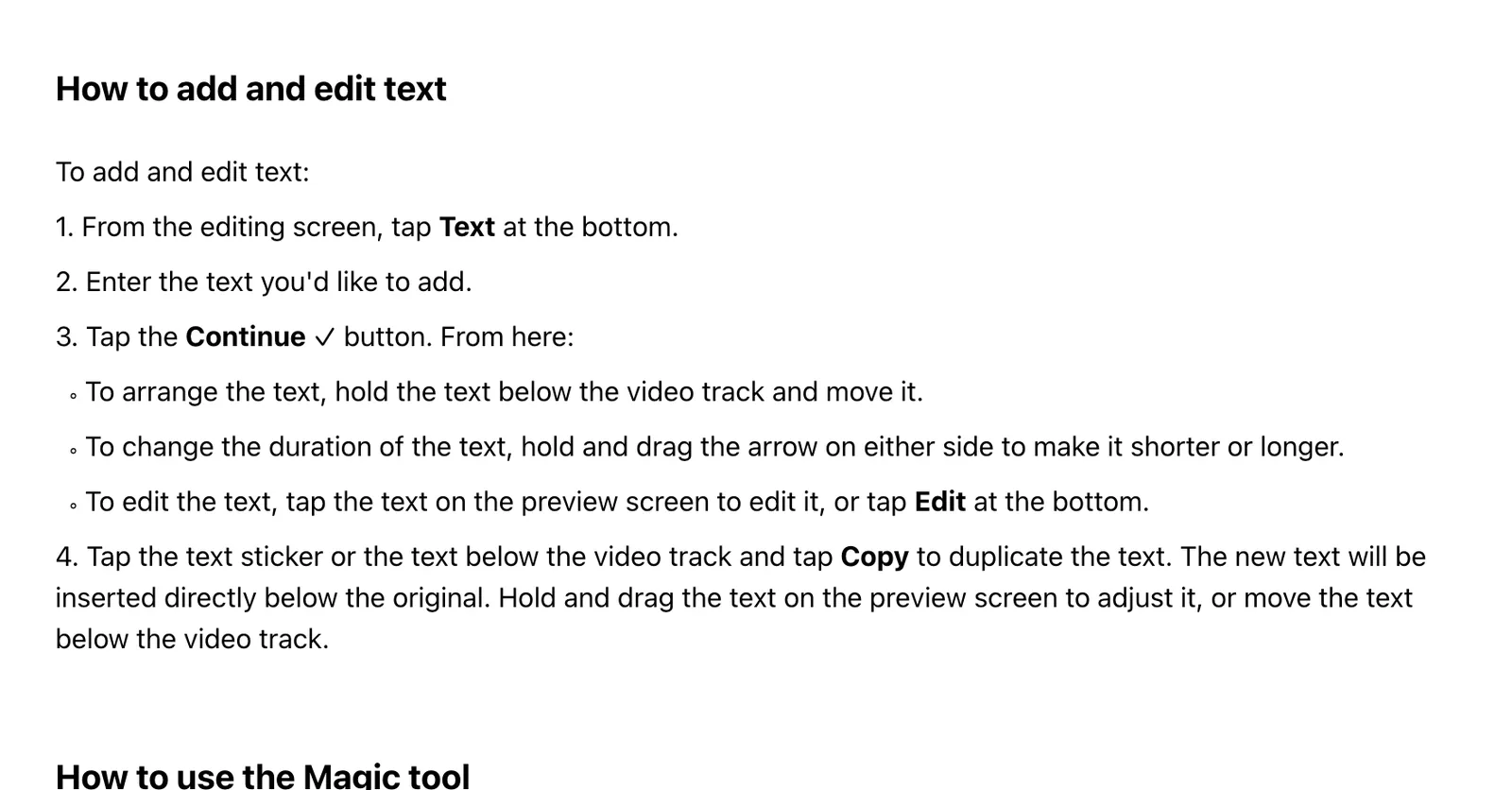
From TikTok's support page:
- From the editing screen, tap Text at the bottom.
- Enter your text, then tap Continue.
- To move it in time, hold the text below the video track and drag it. Drag the arrows on either side to make it shorter or longer.
- To edit it, tap the text on the preview, or tap Edit.
TikTok also lets you add text after recording, from the Text button on the side panel, where you can pick a font, colour and alignment. You can add several text boxes and stickers to one video.
How to add text to a video on iPhone
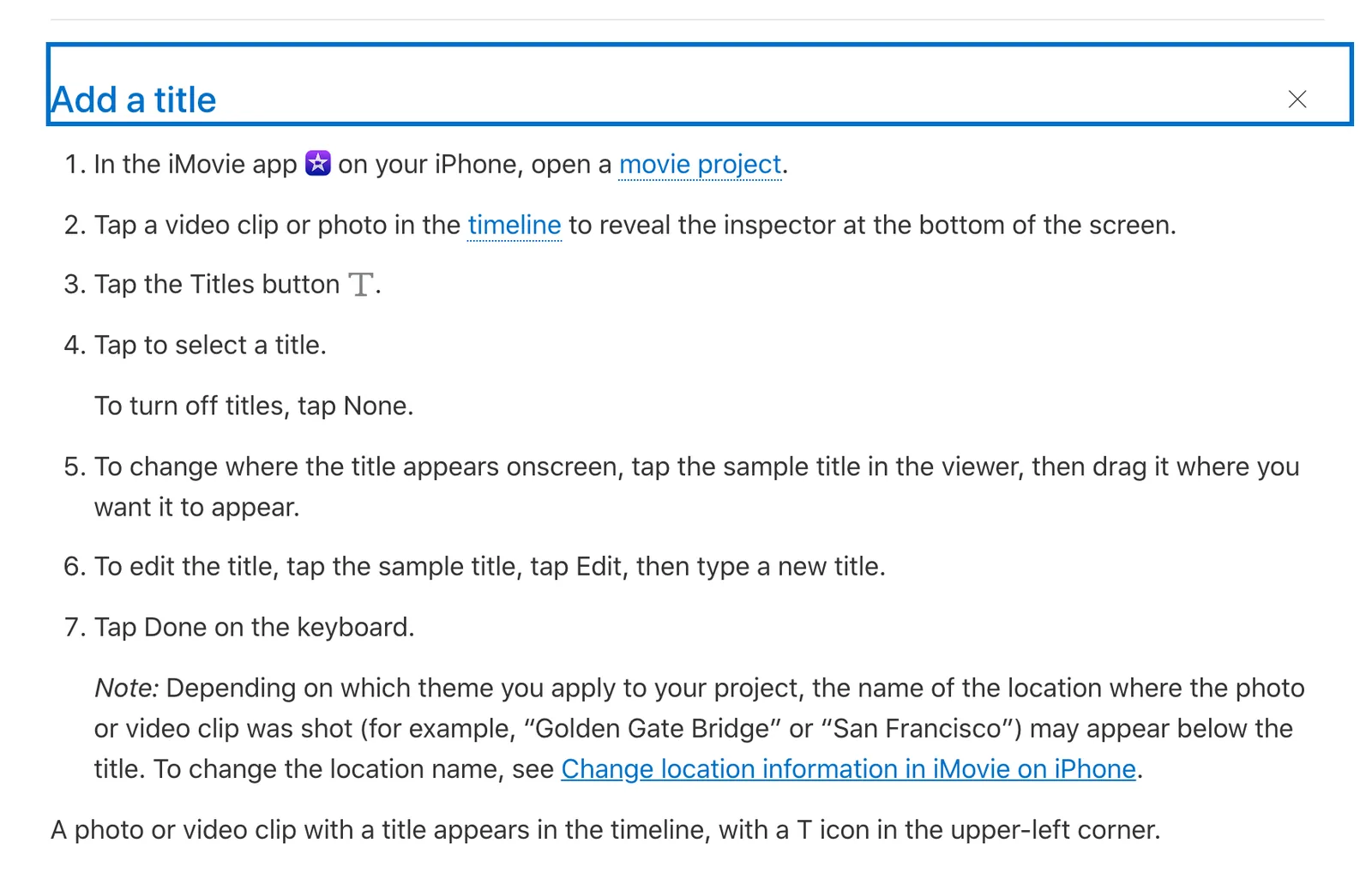
The simplest free way is iMovie, Apple's free video editor. From Apple's iMovie guide:
- Open a movie project and tap a clip in the timeline.
- Tap the Titles button and choose a title style.
- Tap the sample title, tap Edit and type your text, then tap Done.
- Drag the title to move it, or pinch it to resize it.
How to add text to a YouTube video
YouTube Studio's editor is for changes like trimming and cutting, so add text before you upload, in your editor or in goodgoodclips. For Shorts cut from your long videos, goodgoodclips adds captions and a hook title for you.
Tips for text people actually read
- Keep it short: a few words per line, one idea per text box.
- Make it big and high-contrast, with a box or outline behind it.
- Keep it clear of the app's buttons at the bottom and right edge of vertical videos.
- Leave it on screen long enough to read twice.
- Use captions for speech and text for titles and key points.
More: how to add captions to a video and how to edit Reels.