How to Add Captions to a Video (TikTok, Reels and YouTube)
5 min read
There are two kinds of captions: subtitle files that viewers can switch on and off, and burned-in captions that are part of the video. Short-form video needs the second kind, because people scroll with the sound off. The fastest way to add them is with a caption generator like goodgoodclips.com, which captions every word automatically.
Captions vs. subtitles
| Burned-in captions | Subtitle files (SRT, VTT) | |
|---|---|---|
| Where | Drawn onto the video | A separate file the player shows |
| Best for | TikTok, Reels, Shorts | YouTube long videos, websites, accessibility |
| Style | Animated, big, branded | Plain text the viewer controls |
| Can viewers turn them off? | No | Yes |
How to add captions to a video with goodgoodclips
- Upload your video to goodgoodclips.com.
- It transcribes every word with timing, in 16 languages.
- Pick a style: six animated caption templates, with the key word on each line highlighted.
- Fix any word by editing the transcript; the captions follow.
- Download the MP4 with captions burned in, plus SRT or VTT files for YouTube.
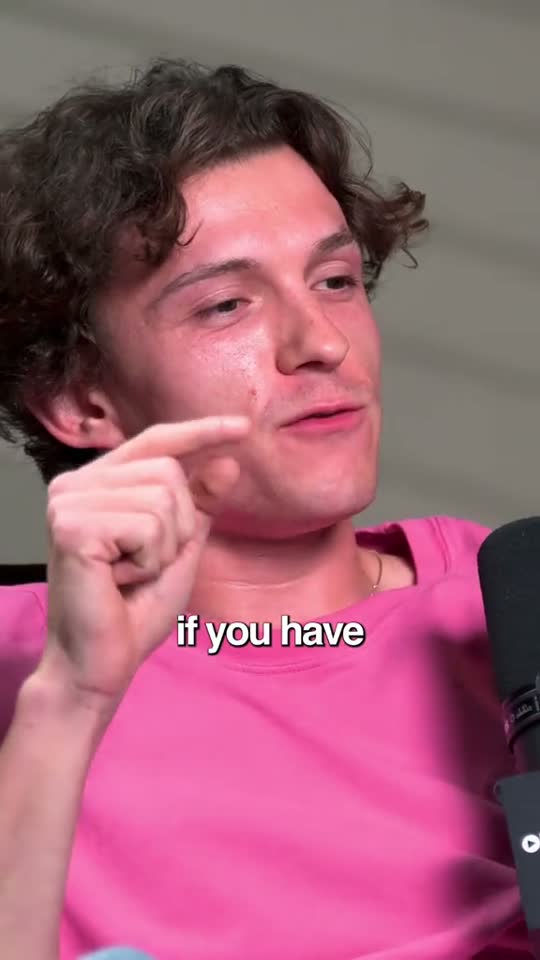
Captions for TikTok and Reels
- Use big, high-contrast captions: two to four words at a time.
- Keep them clear of the app's buttons along the bottom and right.
- Highlight the word that matters, such as a number, a name or a strong verb.
- Match the caption to what's said exactly; viewers notice mismatches.
Best fonts for video captions
Bold, condensed sans-serifs read best on a phone. goodgoodclips includes eight caption fonts: Montserrat and Poppins for clean all-rounders, Anton and Bebas Neue for tall punchy headlines, Archivo Black and Roboto for strong body text, and Bangers and Luckiest Guy for gaming and comedy.
More on styles: auto captions in goodgoodclips.