How to Edit Reels: A Step-by-Step Guide for Instagram
Editing a Reel well comes down to a few things: start on a hook, keep one idea per Reel, frame it for a vertical screen and put captions on. You can do it all in Instagram, and if your Reels come from longer videos, goodgoodclips.com can do the cutting, framing and captions for you.
Before you edit: start from the right moment
The best Reels are often moments from something longer: a podcast, a stream, a talk, an interview. Pick one that works on its own, with a strong first line and a clear ending. If you have hours of footage, let goodgoodclips.com find those moments: it reads the whole video and ranks every candidate with a score and a reason.
How to edit a Reel in Instagram
- Create a Reel and record one or more clips, or add clips from your camera roll.
- Trim each clip so it starts on the hook and ends on the payoff.
- Add audio: keep the original sound, or add a track with the Audio tool.
- Add text, stickers and effects. Put the key point on screen for people watching on mute.
- Write a caption that says what the Reel is about, then share.
Instagram's Reels page covers recording, editing and posting, and notes that Reels aren't available to everyone yet.
Editing Reels with Instagram's Edits app
For more control, Instagram makes a separate editing app called Edits, available on iPhone, Android and Mac. Instagram describes it as its video creation app for creators, with a timeline and creative tools such as green screen.
Reel editing tips that matter
- Hook in the first second. Cut the wind-up; open on the claim, question or reaction.
- One idea per Reel. If there are two points, make two Reels.
- Keep it under 3 minutes. Instagram says Reels over 3 minutes won't be recommended to new audiences.
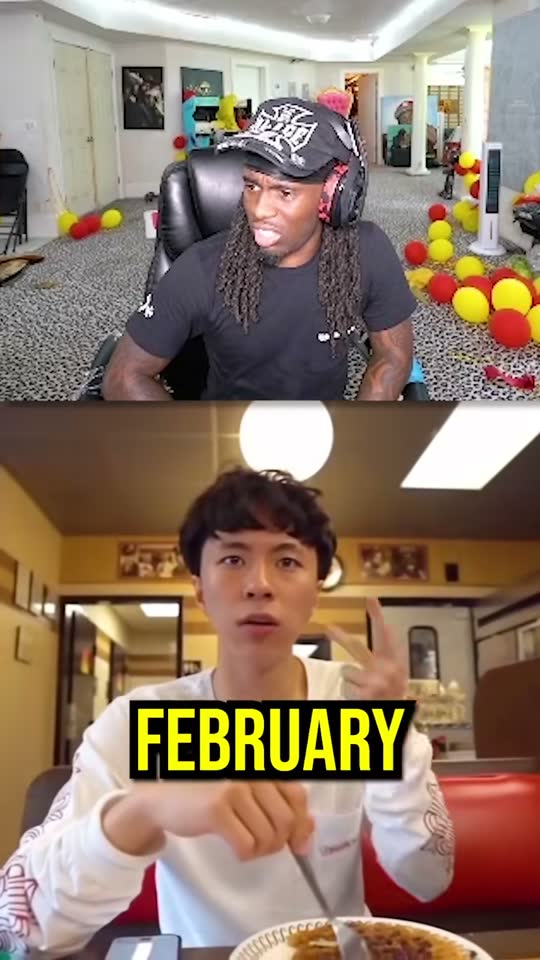
- Captions on screen. Big, readable and timed to the words.
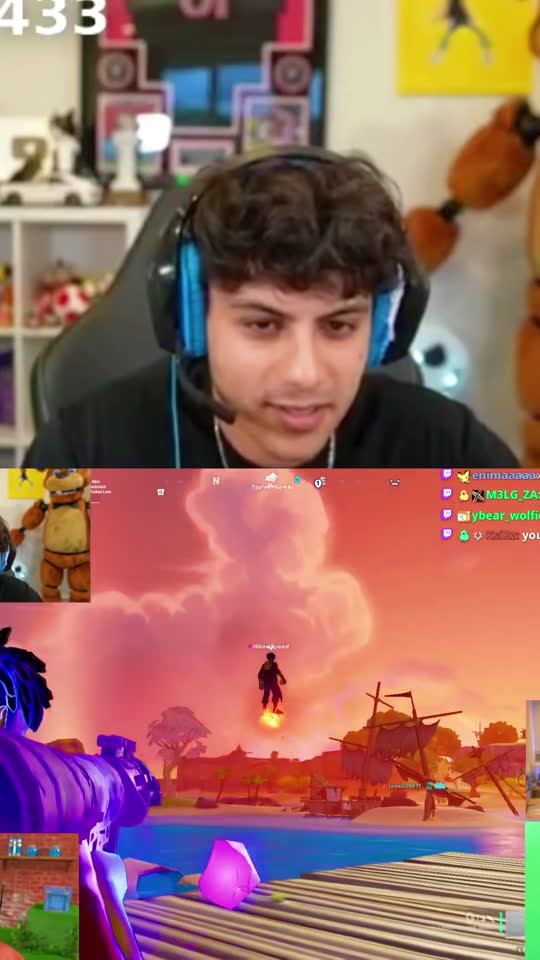
- Faces in frame. Vertical crops zoom in a lot; keep the speaker centred.
Turn long videos into Reels automatically
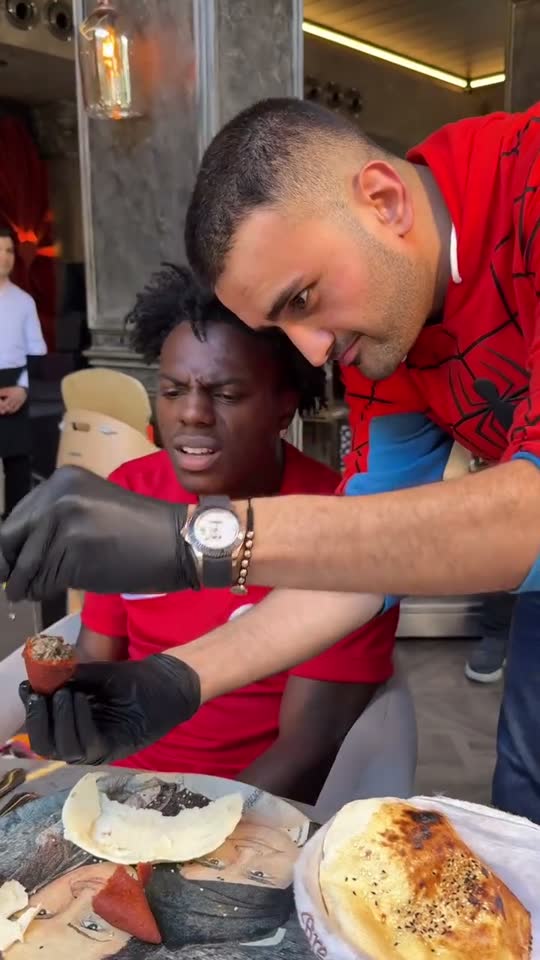
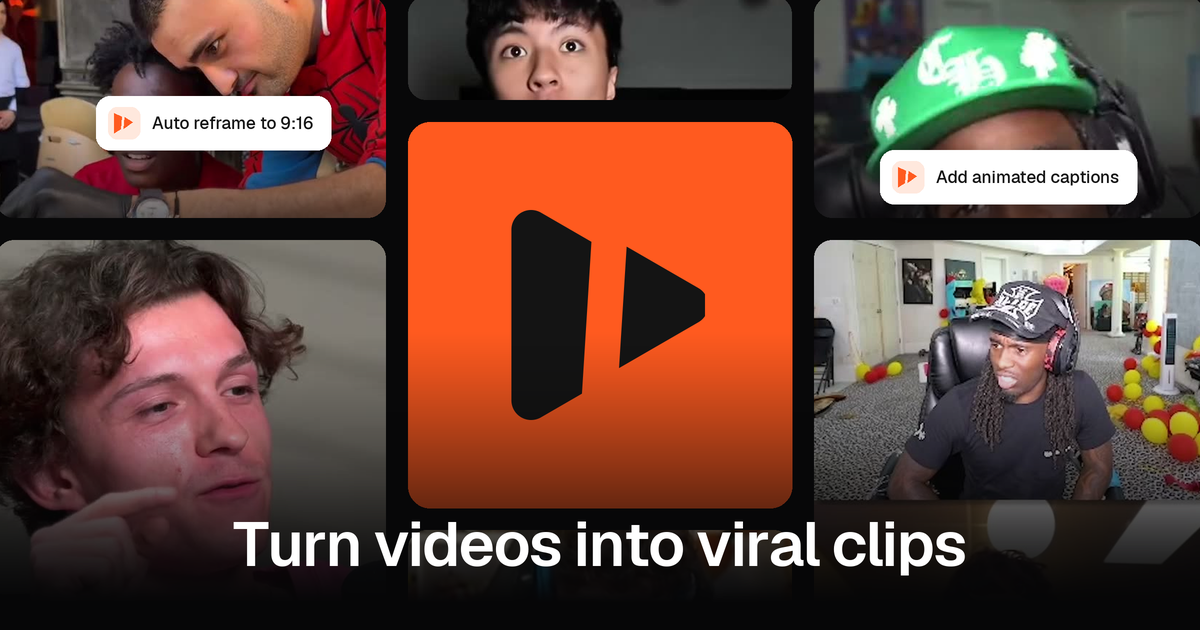
If your Reels come from long recordings, goodgoodclips.com does the editing: it picks the moments, reframes them to 9:16 at 1080p with the speaker in frame, adds animated captions with the key word highlighted, removes filler words in English and writes an Instagram caption with hashtags for every clip. Edit anything, then download and post.