How to Make a Horizontal Video Vertical (16:9 to 9:16)
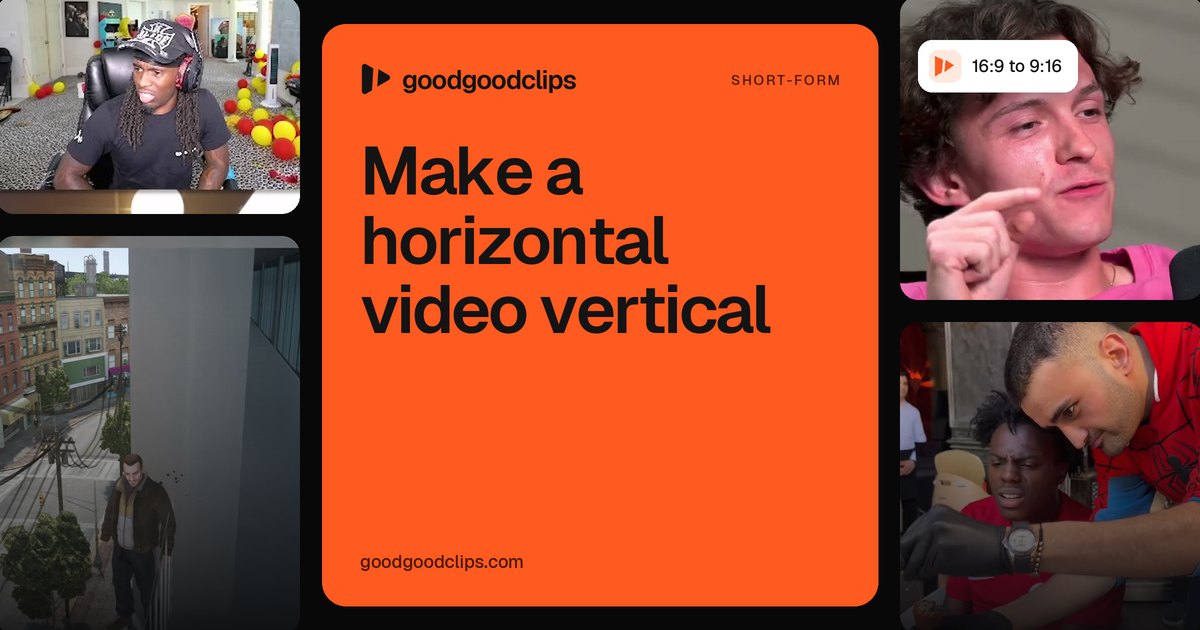
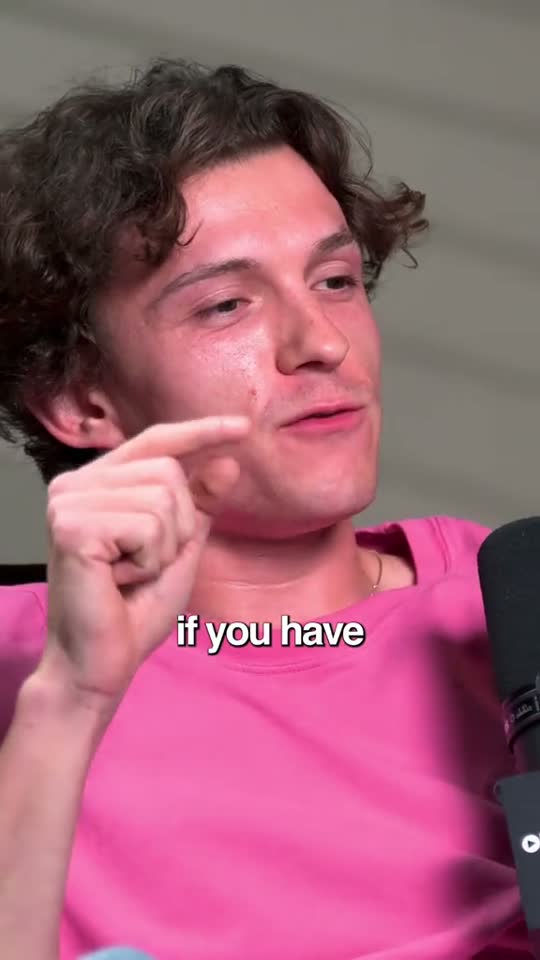
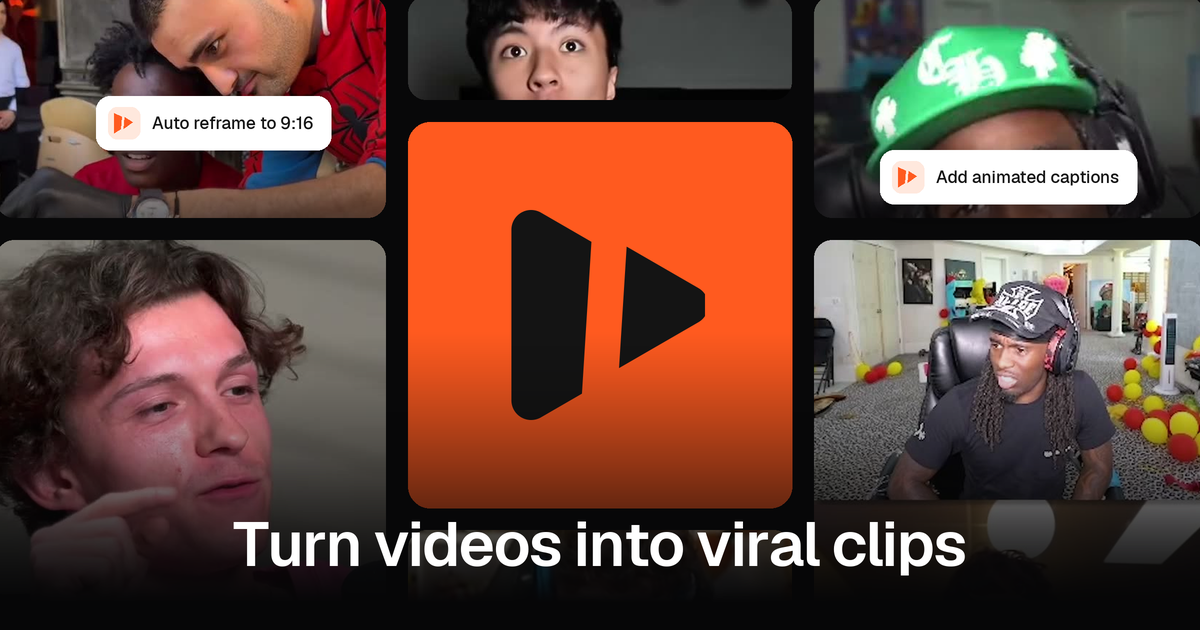
Turning a horizontal video vertical means fitting a 16:9 frame into 9:16, and there are three ways to do it: crop it, fit it on a blurred background, or reframe it so the crop follows the action. The third looks best for people talking, and it's what goodgoodclips.com does automatically.
Three ways to convert horizontal video to vertical
| Method | What it looks like | Best for |
|---|---|---|
| Center crop | Cuts the sides off and keeps the middle | One person who stays in the centre |
| Fit with blur | The whole frame, with blurred copies above and below | Slides, screen recordings, gameplay |
| Auto reframe | The crop moves to whoever is speaking | Podcasts, interviews, streams |
Doing it by hand
Any editor can change the canvas to 9:16 and let you scale and position the video. That works for a single static shot, but for a conversation you'd have to keyframe the crop every time the speaker changes, which is slow.
Vertical video with blurred sides
Fitting a horizontal video on a blurred background keeps the whole frame visible: the video sits in the middle and a blurred, zoomed copy fills the space around it. In goodgoodclips this layout is called Fit with blur, and you can switch any clip to it in one click.
Convert horizontal to vertical automatically
- Upload your horizontal video to goodgoodclips.com.
- It tracks faces frame by frame and detects who's speaking.
- The 9:16 crop follows the speaker with smooth moves and clean cuts.
- Two people in one shot? Switch to split screen and both stay in frame.
- Export at 1080×1920 with captions, ready for TikTok, Reels and Shorts.
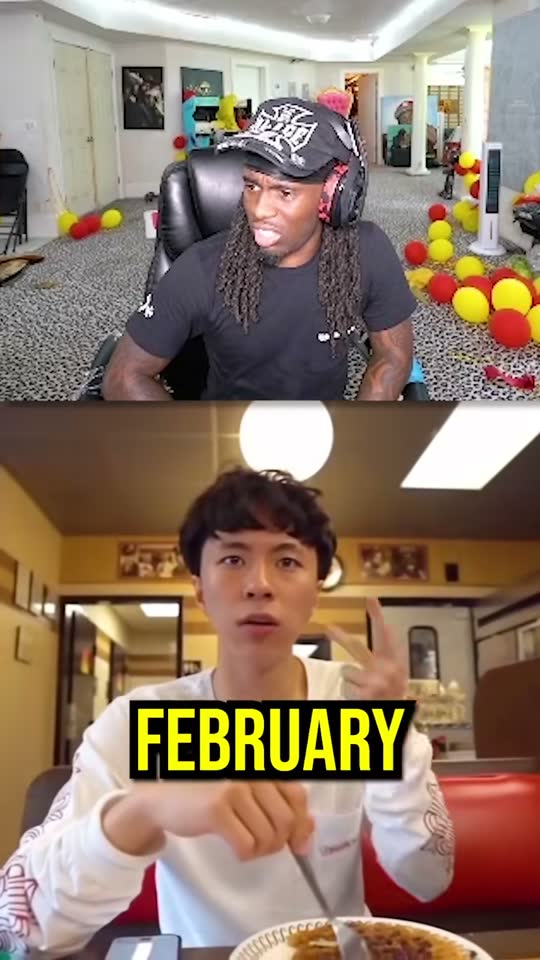
Compare every layout on the auto reframe page, and see vertical video dimensions for sizes.