How to Clip on Twitch: Make, Find, Download and Delete Clips
To clip on Twitch, click the clip icon on a live stream or past broadcast, choose up to 60 seconds, add a title and click Publish. Your clips land in the Clips Manager, where you can find, download, edit and delete them. For whole streams, goodgoodclips.com finds the best moments in a VOD for you and turns them into vertical clips with captions.
How to make a clip on Twitch
- Click the clip icon on a live stream or past broadcast. On mobile you may need to tap the video first for it to appear.
- The Clip Creator opens as an overlay, so you can keep watching while you clip.
- Drag the slider under the video to choose the moment, up to 60 seconds.
- Check the suggested portrait crop. Twitch makes a vertical version of every clip next to the landscape one, keeping your cam and gameplay in frame.
- Give the clip a title and click Publish.
That's from Twitch's help article on creating, editing and sharing clips. On mobile you can trim and title clips while making them; editing the portrait layout isn't available on mobile yet. Streamers control who can clip their channel, so if the clip icon is missing, clipping may be turned off or limited to followers or subscribers.
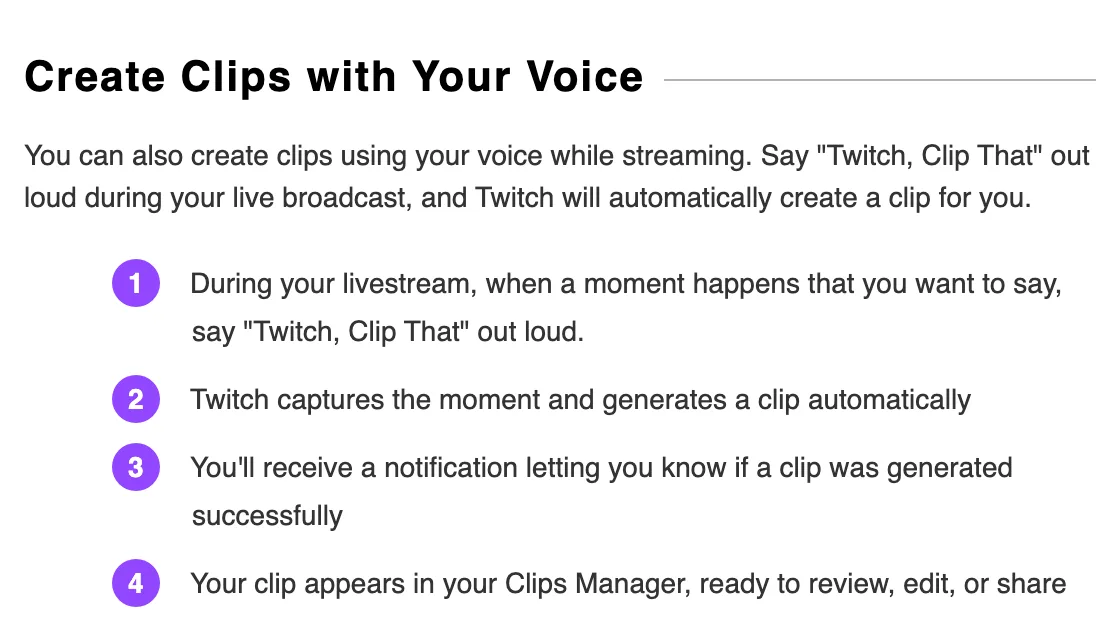
Clip with your voice (instead of a hotkey)
Twitch's help pages don't list a keyboard shortcut for clipping. If you're the streamer, you don't need one: say “Twitch, Clip That” out loud during your broadcast and Twitch makes the clip automatically, sends you a notification and puts it in your Clips Manager.
How to see your clips on Twitch
Open the Clips Manager from your Creator Dashboard: Content > Clips. It has clips of your channel and the clips you've made of other channels. Search by title or category, or filter by category, who made the clip, date range or whether it's featured.
How to download Twitch clips
In the Clips Manager you can download the landscape or portrait version of clips of your channel and of clips you created. If there's no portrait download, edit the clip's layout once and save it; Twitch renders the portrait version after a minute. Streamers can also post clips straight to YouTube, TikTok, Instagram and Snapchat from the Share menu.
How to delete clips on Twitch
- Open the Clips Manager.
- Click the delete icon next to the clip.
- To delete several at once, tick their checkboxes in the list, or use the three-dot menu at the top of the Clips Manager.
You can always delete clips of your own channel. Clips you made of someone else's channel can be deleted until the streamer edits, features or exports them.
How to hide clips or stop people clipping
There's no hide button for a single clip: delete it, or unfeature it so it isn't showcased. To control clipping on your channel, open Clips Settings (link.twitch.tv/ClipSettings): you can turn clipping off, or limit it to followers or subscribers. Clips you and your editors make are added to your Stream Recap by default, and that's switched off in the same settings.
Turn a whole stream into clips
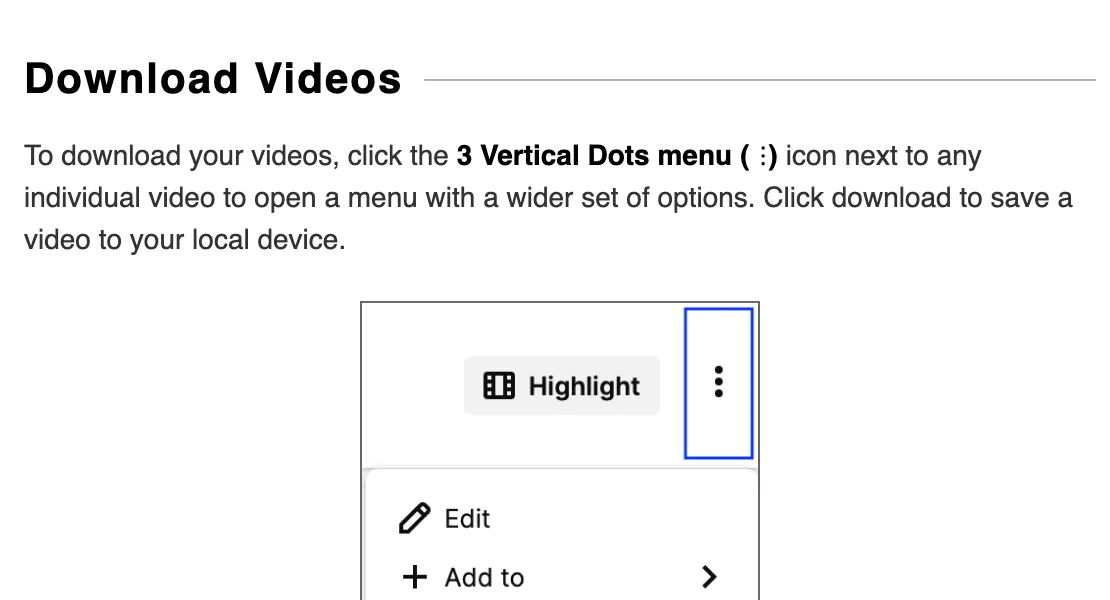
Clipping by hand works for a moment you saw live. For a four-hour stream, start from the VOD. In your Creator Dashboard, go to Content > Video Producer, open the three-dot menu next to the broadcast and click Download. Past broadcasts are kept for 7 days, 14 days for Affiliates, and 60 days for Partners, Prime and Turbo users, so download the ones you want to keep, per Twitch's page on on-demand content.
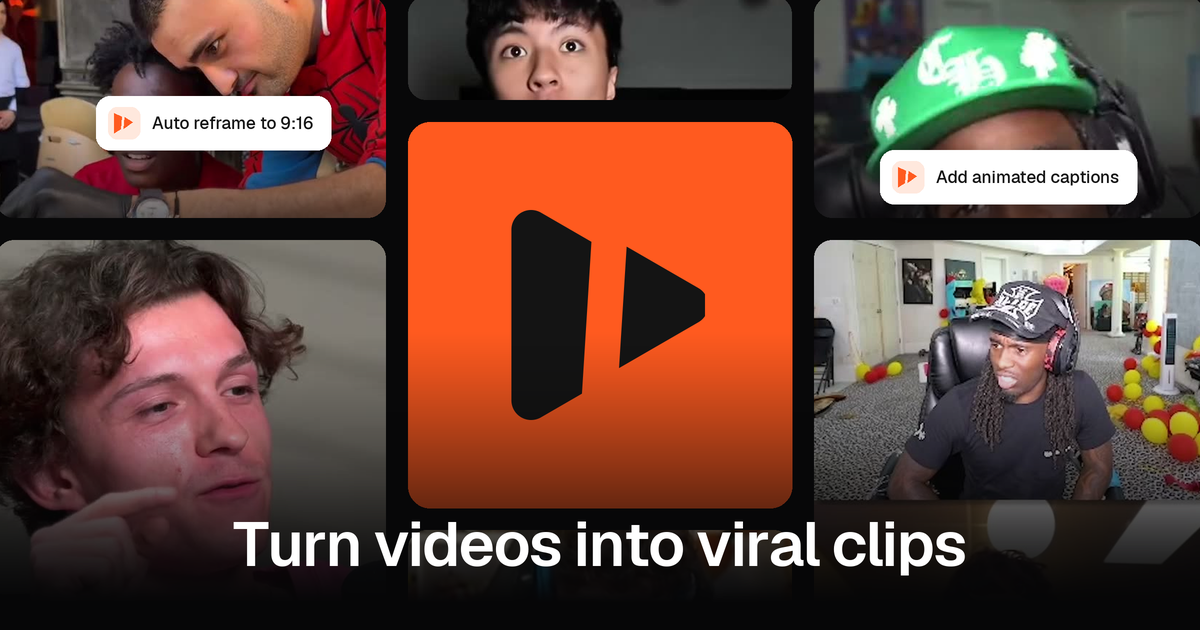
Then upload the file to goodgoodclips.com. It transcribes everything you said, picks the moments that work on their own, and reframes each one to 9:16: following your face on IRL and face-cam streams, or keeping the whole game frame with Fit with blur. Ask for up to 30 clips per video on Creator, 40 on Pro and 50 on Agency. More on the Twitch clips page.