How to Start Streaming on Twitch and Kick (Step by Step)
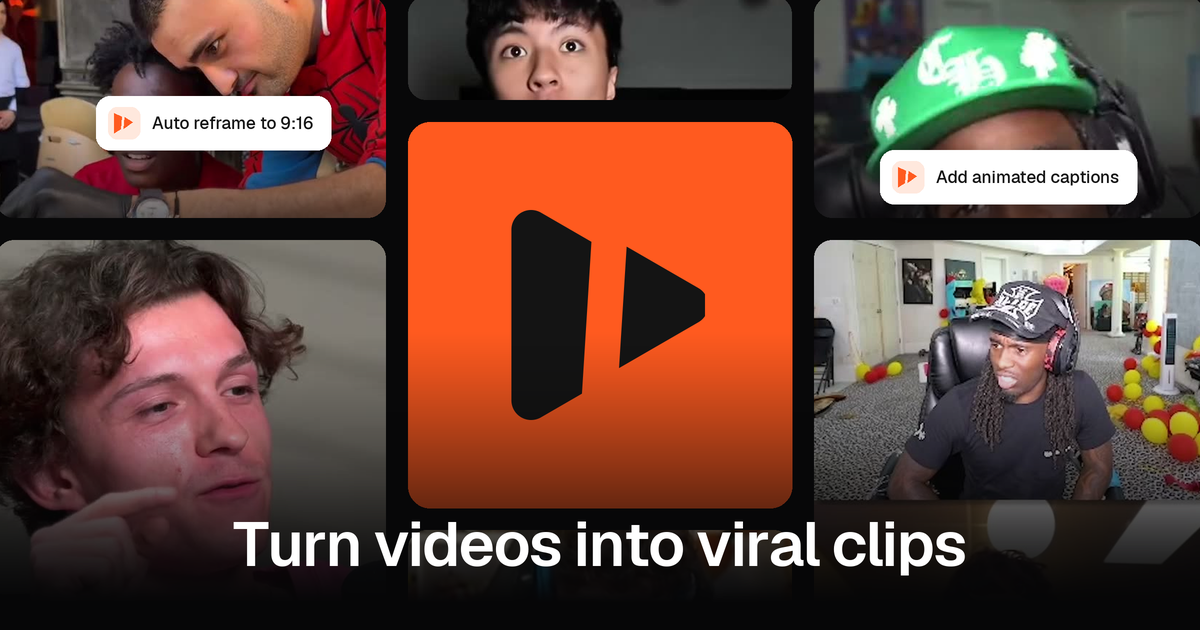
Starting a stream takes an account, free broadcasting software and a few minutes of setup. Growing it takes something else: getting your best moments in front of people who aren't watching live yet. That's where clips come in, and where goodgoodclips.com helps, turning each stream into a batch of TikToks and Shorts.
What you need
- A computer, a microphone and (optionally) a camera.
- Broadcasting software. OBS Studio is free and open source, for Windows, macOS and Linux.
- An account on Twitch, Kick or both.
How to start streaming on Twitch from a PC
Twitch's Creator Camp guide breaks it into four steps:
- Log in or create a Twitch account.
- Set up your broadcasting software (such as OBS) and any capture card.
- Add a title, category and tags in your Creator Dashboard.
- Go live.
Your past broadcasts, clips and highlights live in the Creator Dashboard's Content section, where Twitch says you can edit, download or delete them.
How to start streaming on Kick
- Log in and open your creator dashboard.
- Click Channel, then Stream URL and Key.
- In OBS, open the stream settings, choose a custom service and paste the server URL and stream key.
- Set your stream title and category in the dashboard; Kick warns your stream may not start correctly without them.
- Click Start Streaming in OBS.
Kick's streaming guide lists the supported settings, including a maximum of 1920x1080. After you stop streaming, your VOD is saved to your channel, and you can download it from your dashboard under Studio > VODs.
Grow your stream with clips
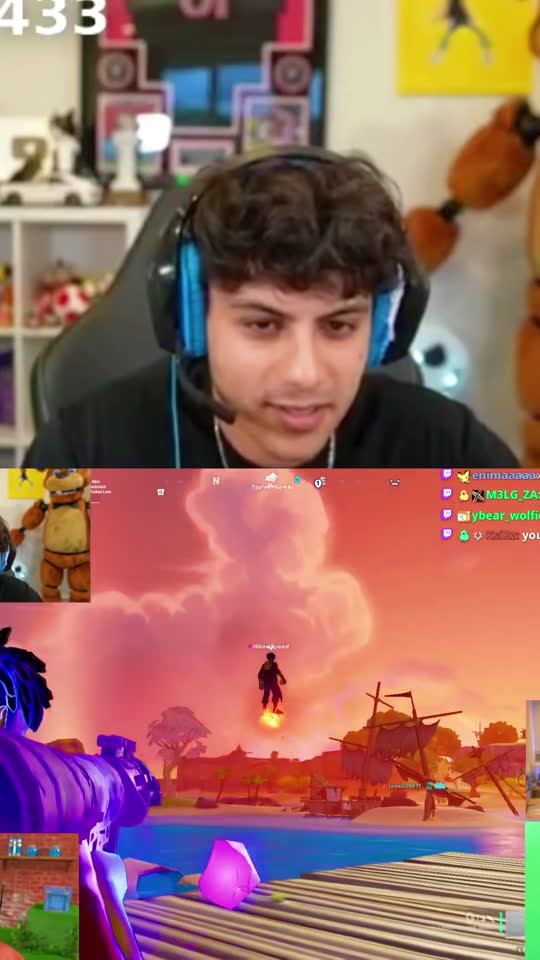
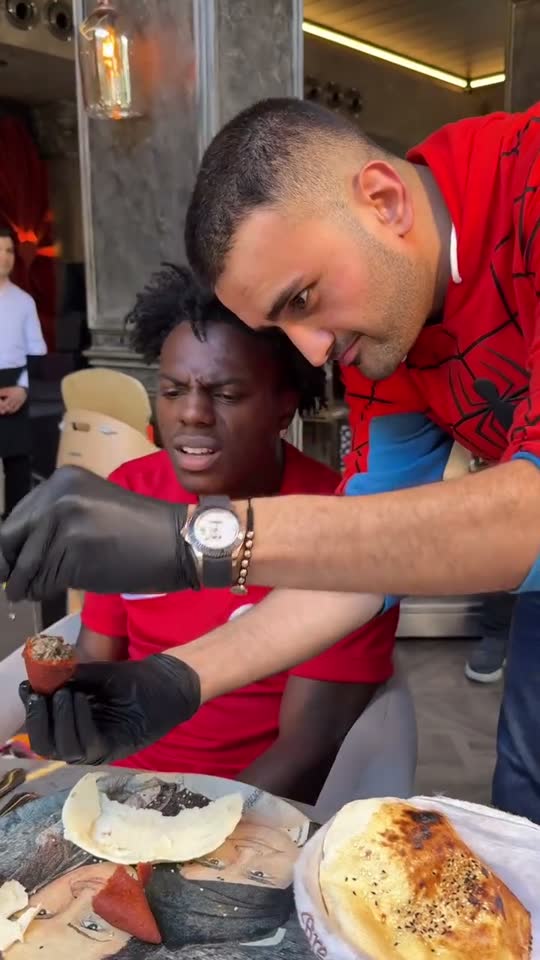
Most viewers discover streamers through short clips, not by browsing live channels. After each stream, download your VOD and upload it to goodgoodclips.com: it reads the whole stream (up to 4 hours), finds the reactions, stories and big moments in what you said, frames your face cam or the gameplay, and adds captions. Post the clips to TikTok, Shorts and Reels through the week.
More: Twitch stream clips. Steps checked on Twitch's, Kick's and OBS's official pages on 16 November 2026.